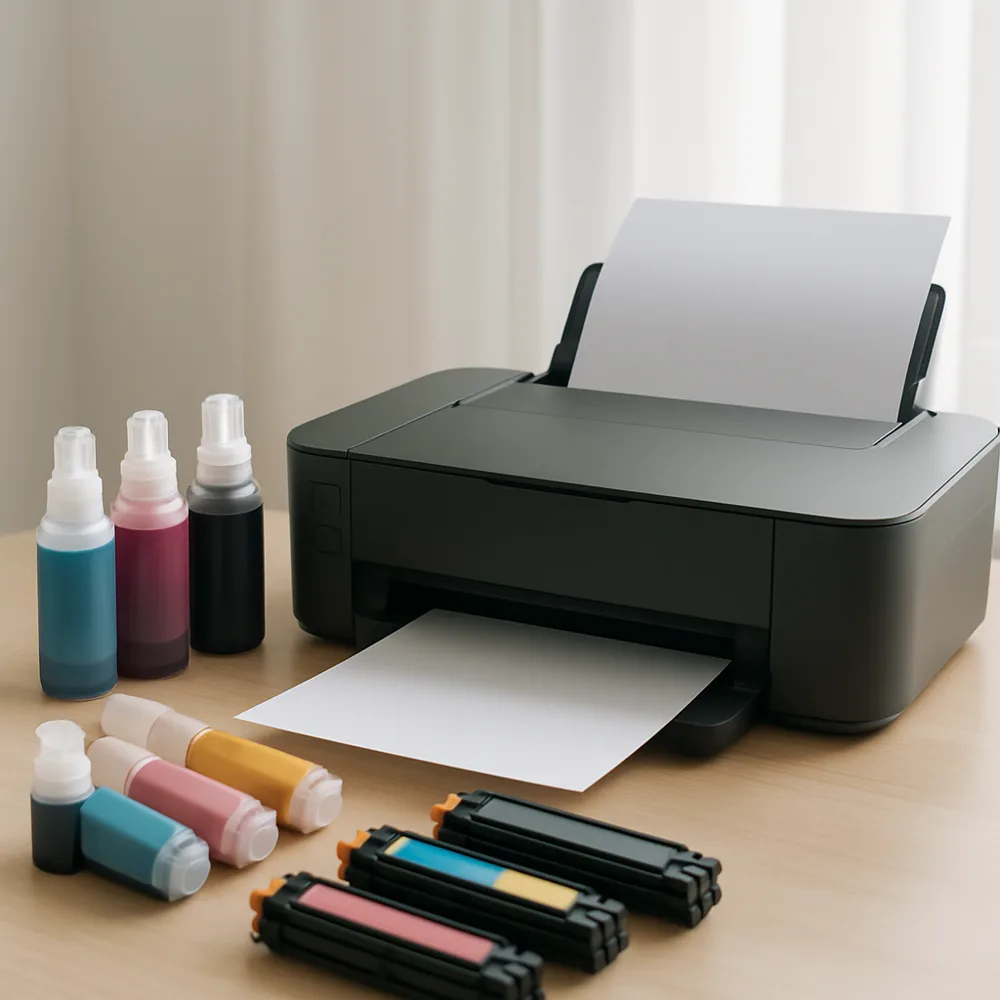
Color differences between a screen and a printed page are normal. Screens create light, while printers place ink or toner on a surface, so the same image cannot look identical in every condition. Monitor brightness, room lighting, paper, and printer settings all affect how color appears.
Begin by selecting the correct paper type in the print dialog. A photo setting on plain paper can use too much ink, while a plain-paper setting may not make full use of photo stock. Choose a quality level appropriate to the job, and make sure the selected size and border options match the media loaded in the printer.
Run a nozzle check on an inkjet printer if a color is missing or broken, or use the model’s quality report for a laser printer. Confirm that cartridges are seated and have supply remaining. Use the printer’s alignment or calibration tool when the manual recommends it. Avoid changing several color controls at once, since that makes results harder to compare.
Print a small test section before producing multiple copies. If the color remains off, compare the image on another screen or view a known reference image under consistent light. Advanced color-management options can help specialized workflows, but ordinary home printing usually improves most when media, driver settings, and maintenance are correct.
Also on this site: All coverage