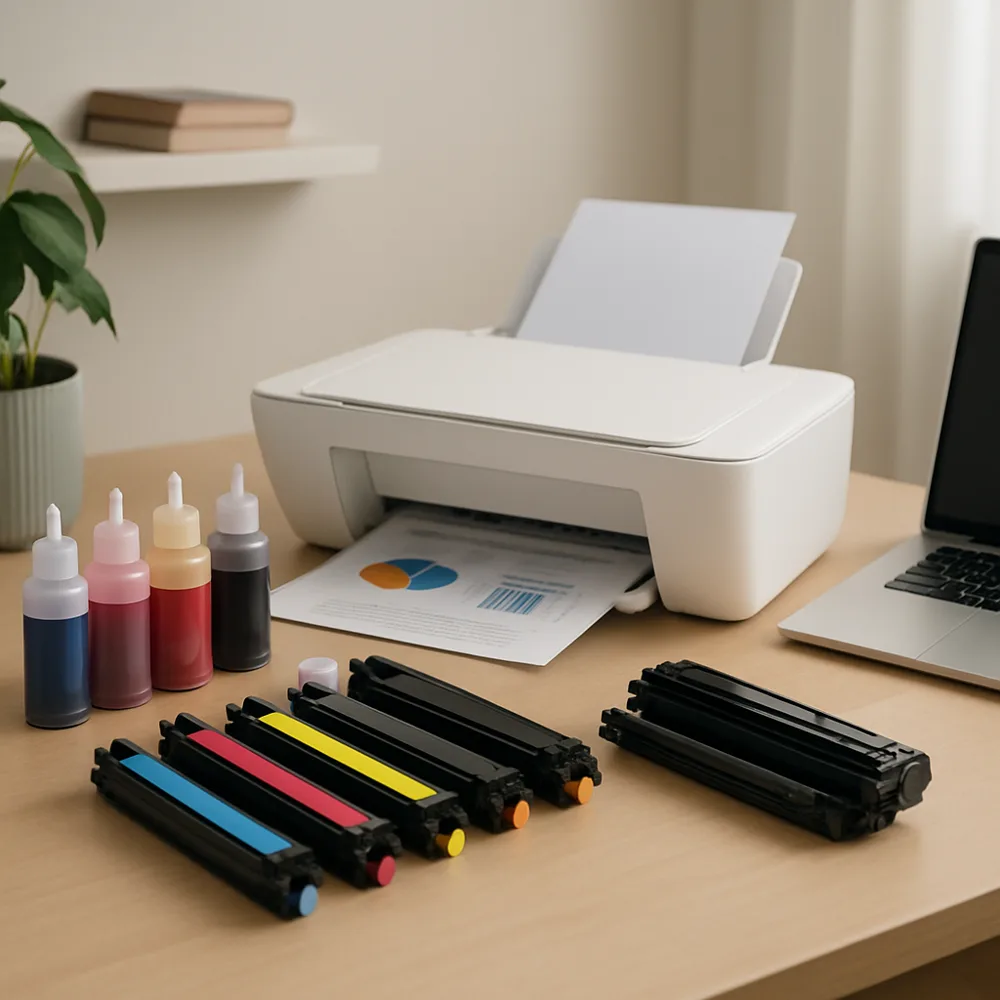
Use label sheets made for your printer type. Inkjet and laser labels may have different adhesives and surface materials, and the wrong stock can smear, peel, or damage a printer. Check the packaging for supported devices, sheet size, and any restrictions listed in your printer manual.
Load labels according to the tray diagram and choose the appropriate media setting if one is available. Confirm the page size and template dimensions in your software; even a small mismatch can shift text toward the edges. Use print preview to inspect alignment and make sure the design stays within each label’s safe area.
Test the layout on plain paper before using a label sheet. Hold the test against the sheet to check placement, or use a template’s alignment guide. Feed label stock flat and uncurled, and do not send a partially used sheet unless both the label maker and printer say it is suitable. Loose labels can lift inside the paper path.
Allow inkjet labels to dry fully before handling, and store unused sheets flat in their original packaging. If a label sheet jams, follow the printer’s removal instructions and check carefully for fragments. Do not pull forcefully or run labels through a printer mode that the stock packaging does not support.
Also on this site: All coverage