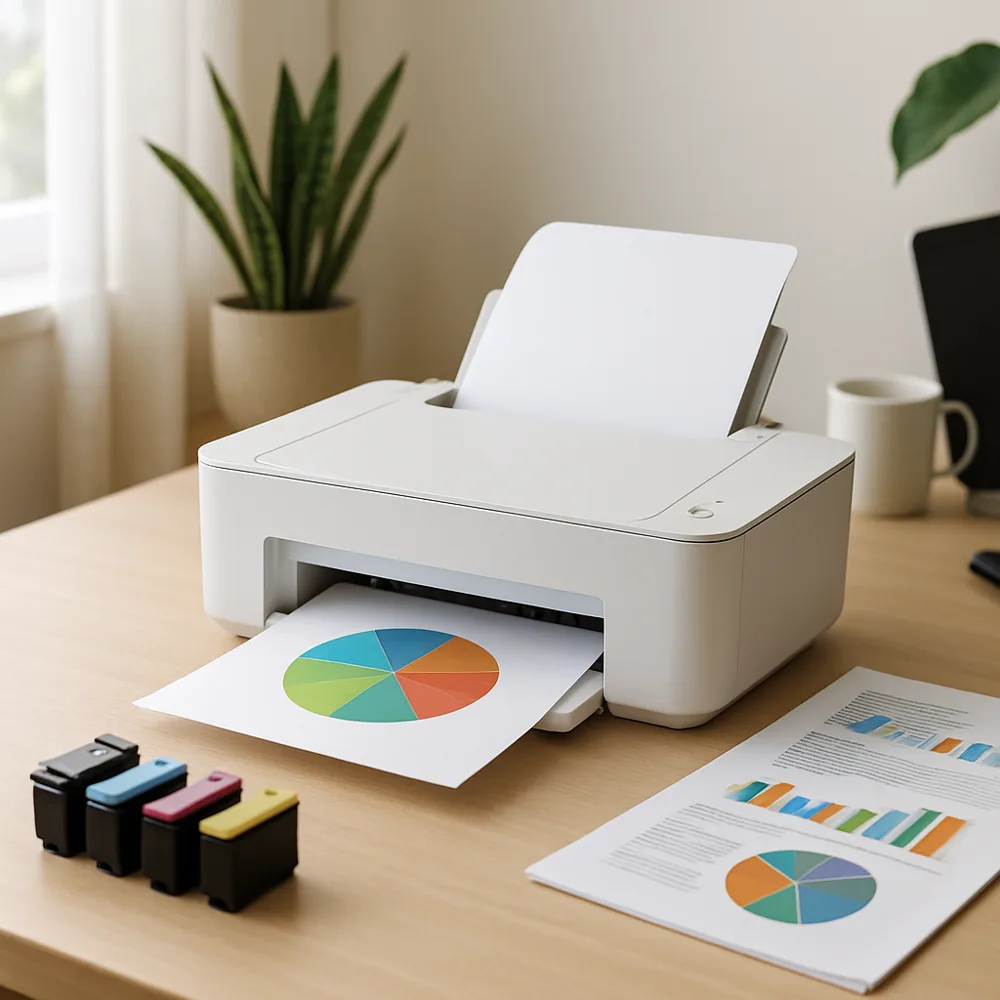
A cartridge recognition warning can result from an incorrect supply, incomplete installation, a protective seal left in place, or a communication problem. First read the full message on the printer display or in its software. Some alerts are informational, while others prevent printing until the cartridge is corrected.
Confirm the printer model and cartridge number match the supply in use. Turn the printer off if the manual recommends it, then open the access panel and check that the cartridge is seated in its intended position. Remove packaging only as instructed. Avoid touching electrical contacts, nozzles, or imaging surfaces, since oils or damage can affect operation.
If the manual permits it, remove and reinstall the cartridge once, following the exact steps. Check that the access door closes fully and that the printer completes its normal initialization. For a replacement supply, compare its label with the compatibility information for your model. A cartridge designed for a related series may still be incompatible.
If the message continues, record the exact wording and consult model-specific guidance. Do not use tools to bend contacts or alter a cartridge chip. If a new supply appears faulty, contact the seller or supplier using its stated support process. Repeated resets or firmware changes are not a substitute for confirming fit and installation.
Also on this site: All coverage